The quick answer
WordPress 7.1.4 came out on October 28, 2026. It closes a batch of security holes, and one of them is a bug in the core update process that WordPress says could lead to remote code execution. If your site runs anything from 4.7 to 7.1.3, update to the patched release for your branch today. It takes about five minutes, and the table below tells you exactly which number you need.
Most people never see a WordPress security release. Their site updates itself overnight and life goes on. The trouble is the sites where that quietly does not happen. When we checked every WordPress install we look after this week, we found sites still sitting on 7.1.2 and 7.1.3 days after the fix shipped, with automatic updates supposedly switched on. Nobody knew until we looked.
This guide walks you through what 7.1.4 fixes, how to tell in two minutes whether your site is covered, how to update it safely, and what to do when the update refuses to run.
Am I affected?
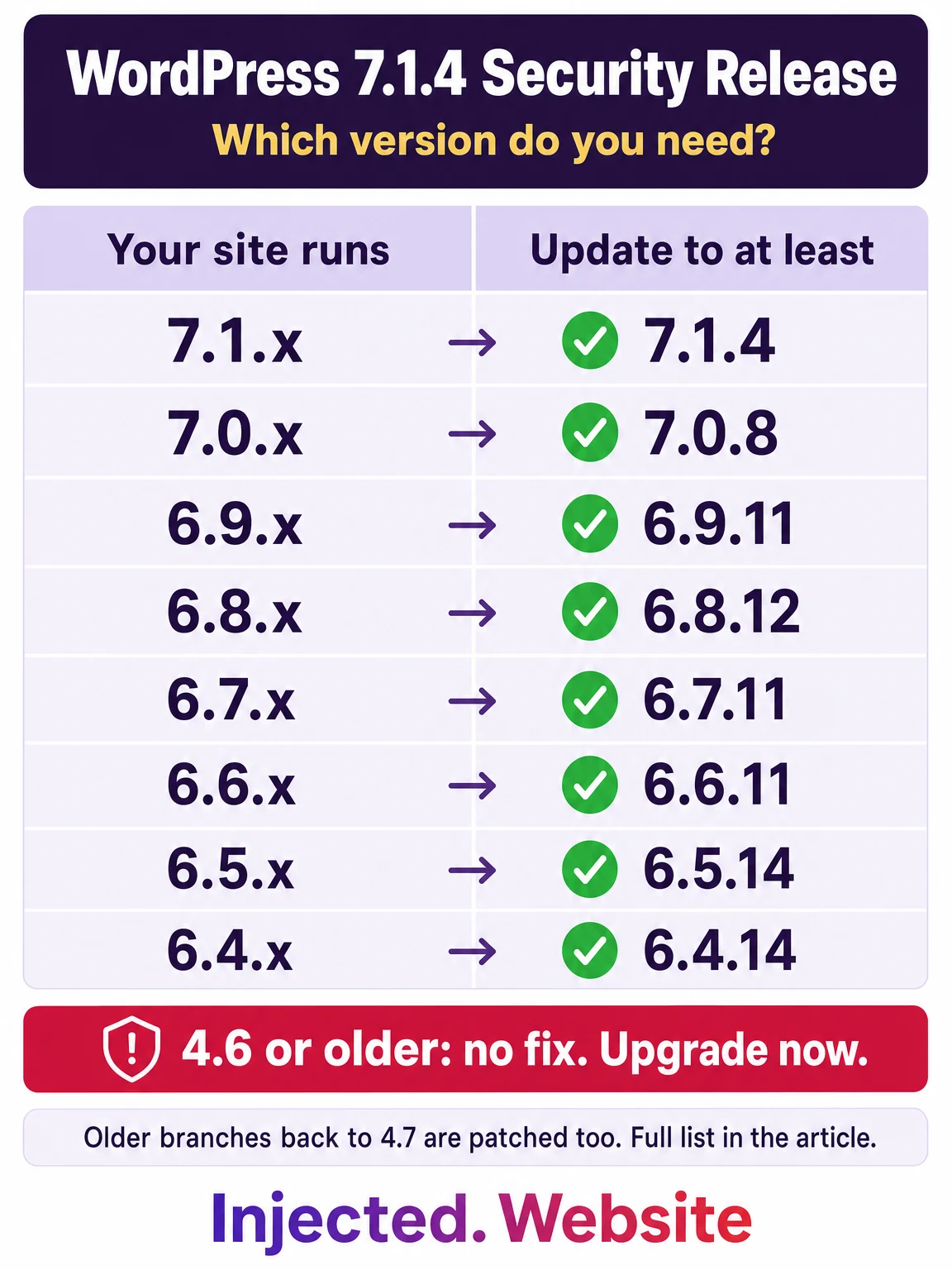
You are exposed if your site runs any WordPress version from 4.7 up to 7.1.3 and has not picked up the patched release for its branch. WordPress did not only fix the newest version. It pushed the fixes all the way back to the 4.7 branch, so even a very old site has a safe update waiting for it.
The patched version for every branch
| If your site runs | Update to at least | Security issues that applied to this branch |
|---|---|---|
| 7.1.x | 7.1.4 | All issues in this release |
| 7.0.x | 7.0.8 | 22 |
| 6.9.x | 6.9.11 | 22 |
| 6.8.x | 6.8.12 | 20 |
| 6.7.x | 6.7.11 | 20 |
| 6.6.x | 6.6.11 | 19 |
| 6.5.x | 6.5.14 | 17 |
| 6.4.x | 6.4.14 | 17 |
| 6.0.x to 6.3.x | 6.0.18, 6.1.16, 6.2.15, 6.3.14 | 9 |
| 5.9.x | 5.9.20 | 9 |
| 5.0.x to 5.8.x | 5.0.31, 5.1.28, 5.2.30, 5.3.27, 5.4.25, 5.5.24, 5.6.23, 5.7.21, 5.8.19 | 6 |
| 4.9.x | 4.9.35 | 4 |
| 4.7.x and 4.8.x | 4.7.39, 4.8.34 | 2 |
| 4.6 or older | No fix. These versions no longer get security updates. Move to a supported branch. | |
Notice the pattern in the last column. The newer your branch, the more of these bugs apply to you, because most of them live in features WordPress added in recent years. Being on a modern version is good, but it also means this particular release matters more to you, not less.
Who should move fastest
Reading the release notes line by line, eight of the security fixes are for bugs that someone with a Contributor account can trigger. A Contributor is the lowest WordPress role that can write a post. That changes who is most at risk:
- Sites with several writers. Blogs, magazines and news sites that give out Contributor or Author logins.
- Membership, community and course sites where members can submit posts or content.
- Agencies and freelancers who have handed client staff their own WordPress logins.
- Sites with old, forgotten user accounts. A former writer’s account with a reused password is an open door.
A one-person brochure site with a single admin account is less exposed to the scripting bugs, but it still gets the update-process fix and the information leak fix, and those do not need a writer account at all. Everyone should update.
What WordPress 7.1.4 fixes, in plain English
WordPress publishes short one-line notes for each fix and keeps the technical details back until most sites have updated. That is normal and sensible. Here is what the notes tell us, grouped so it makes sense.
1. A race condition during core updates
This is the headline fix. A race condition is a timing bug: two things happen at nearly the same moment and the software handles them in the wrong order. WordPress says this one, in the code that installs core updates, “could lead to remote code execution.” Remote code execution is the worst class of bug there is. It means an attacker could run their own code on your server, which is how sites end up full of spam pages, redirects and hidden backdoors.
WordPress has not said what an attacker would need to pull this off, and we are not going to guess. The safe reading is simple: treat it as serious and patch.
2. Stored cross-site scripting (XSS), mostly in the Interactivity API
Most of the fixes are stored XSS bugs. In plain terms, a user with a writing account saves a post with a hidden piece of script in it. When an administrator later opens or previews that post, the script runs in the administrator’s browser with the administrator’s powers. From there an attacker can create a new admin user, install a plugin, or change site settings without ever knowing your password.
The Interactivity API, the system behind newer interactive blocks, accounts for several of these. Others sit in the Comments Pagination and Post Navigation Link blocks, the Categories block, Customizer selective refresh, an uploaded-text-file path in the Interactivity Router, and the personal data erasure screen.
3. Information disclosure
Logged-out visitors could see unpublished changes saved in the Customizer. If you were preparing a launch, a sale, or a redesign in the Customizer, that work was visible before you meant it to be.
4. Permissions and hardening
- Custom comment-moderator roles could read, edit and delete notes on posts they are not allowed to edit.
- Post content could shadow Script Module data by reusing an element ID.
- Usernames on the multisite Network Users screens are now escaped properly.
- Unsafe text replacements in the Image and Playlist blocks were hardened.
- The bundled root certificates were updated after the eMudhra certificate revocation. This keeps your site’s secure connections to other services working.
As of October 31, 2026, WordPress has not published CVE numbers for these fixes and has not reported any of them being exploited. That can change quickly once researchers start comparing the old and new code, which is exactly why the first few days after a release matter most.
How to check and fix your site, step by step
Step 1: Find your WordPress version
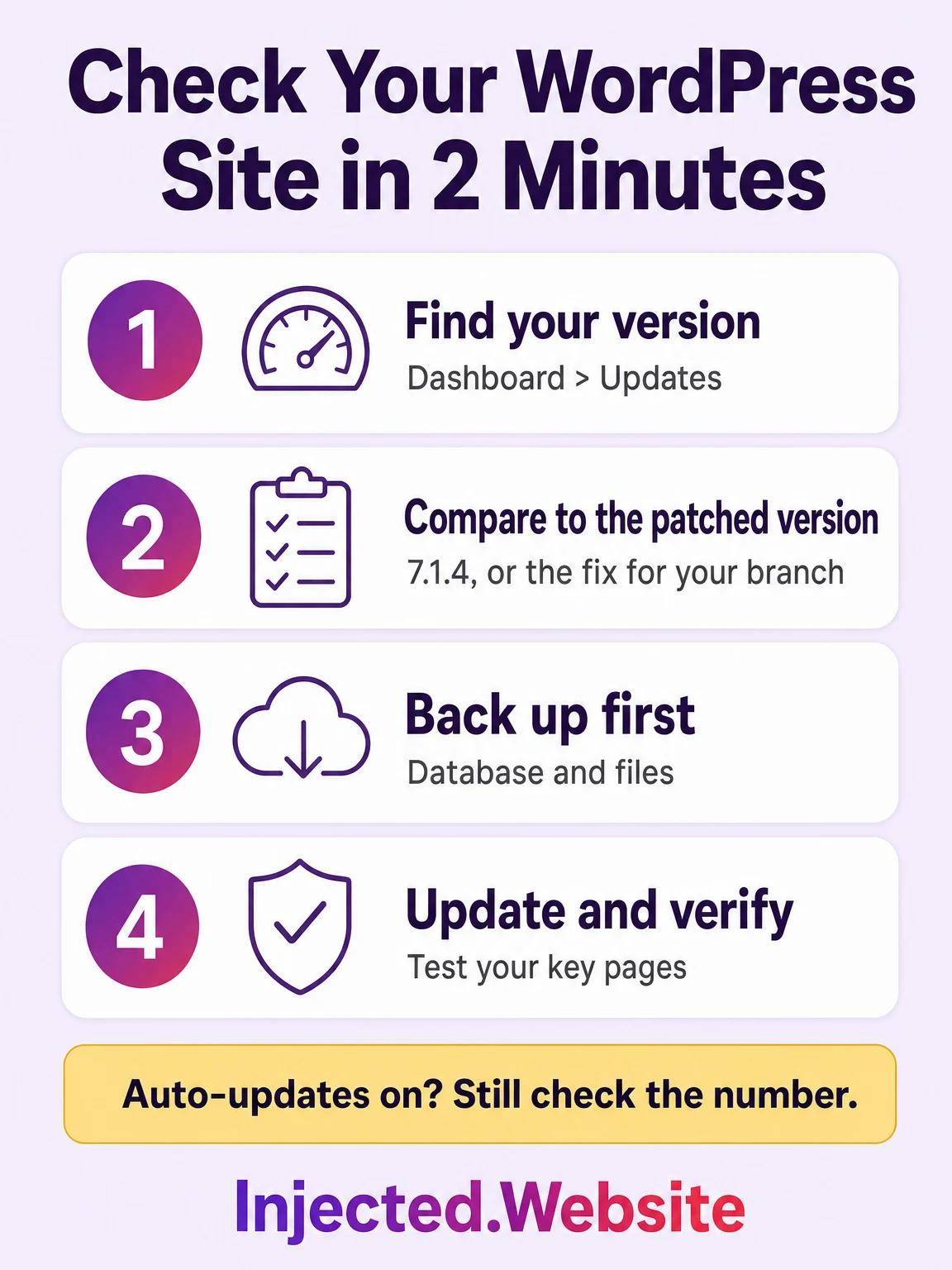
Log in to WordPress and go to Dashboard, then Updates. Your current version is printed near the top of the page, and if an update is waiting you will see a button to install it. You can also find the version at the bottom right of most admin screens, or under Tools, then Site Health, then Info.
If you manage sites from the command line, one command gives you the answer:
wp core versionStep 2: Compare it with the table
Find your branch in the table above. If your number is lower than the patched version for your branch, you need to update. If it matches or is higher, you are covered for this release and can skip to the plugin check in Step 6.
Step 3: Back up before you touch anything
Take a fresh backup of both the database and the site files. If your host offers one-click backups in cPanel, Plesk or its own dashboard, use it now, not last week’s copy. Then open the backup and make sure it is not empty. On the sites we manage, if a database backup comes out suspiciously small, we stop and do not update until we know why. That rule has saved us more than once.
Step 4: Install the patched release
Pick whichever way fits how you run your site:
- From the dashboard. Go to Dashboard, then Updates, and click the update button. WordPress offers the newest version for your setup.
- From your hosting panel. Tools like cPanel’s WP Toolkit list every site on the account with its version and let you update them from one screen.
- From the command line. If you are on an older branch and want to stay on it for now, update within the branch only, then run any database upgrade WordPress asks for:
wp core update --minor
wp core update-db
The --minor flag keeps you inside your current branch, so a 6.8.11 site goes to 6.8.12 and not to 7.1. In the middle of a security scramble, the smallest change that closes the hole is the safest one. Plan the bigger jump for a calm day.
Step 5: Verify and test
- Check Dashboard, then Updates again and confirm the new version number.
- Check that the core files match the official ones. Site Health flags problems, or run
wp core verify-checksums. - Clear your caching plugin and any CDN cache so visitors get the fresh files.
- Test the pages that make you money: the home page, checkout or booking, contact forms, and the login page.
Step 6: Update your plugins and themes separately
WordPress 7.1.4 patches WordPress itself. It does nothing for your plugins. In our own sweep, plugins were the bigger gap. The clearest example this month is LiteSpeed Cache, where every version below 7.9.2 has an unauthenticated stored XSS bug according to Patchstack. If you run it, check the version while you are in the dashboard.
Why “auto-updates are on” is not enough
By default, WordPress installs minor and security releases on its own. That is true, and it works on most sites. But “most” is not “yours.” These are the reasons we see sites miss a security release:
- Updates switched off in wp-config.php. A line like
define( 'AUTOMATIC_UPDATER_DISABLED', true );ordefine( 'WP_AUTO_UPDATE_CORE', false );turns them off. Often a developer added it years ago and nobody remembers. - File ownership or permissions that stop WordPress from writing its own files, so the update fails silently.
- A half-finished earlier update. A leftover
.maintenancefile in the site’s root folder can keep the site stuck in “Briefly unavailable for scheduled maintenance” and block new updates. - Not enough disk space to download and unpack the update.
- A host or firewall that blocks the site from reaching WordPress.org.
- Very little traffic. WordPress runs its scheduled tasks, including background updates, when someone visits the site. A quiet site can lag behind.
The lesson is the same every time: check the version number. Do not trust the setting.
What we saw on the sites we manage
We look after a large fleet of WordPress sites, more than 350 installs across several servers. When 7.1.4 landed we did not wait for auto-updates to do their thing. We swept every install and compared the real version on disk against the patched version for its branch. Here is what we found:
- Auto-updates handled most sites. The large majority had already patched themselves.
- A handful were stuck on 7.1.2 and 7.1.3 with automatic updates supposedly on. We moved 8 sites to the patched release by hand.
- Plugins were the bigger problem. We updated LiteSpeed Cache on 32 sites that were still running a vulnerable version.
- Dead sites were still on the server. Several old installs had a broken database connection. The site was gone, but the files were still sitting there, unpatched and unwatched. We left them untouched and flagged them for archiving.
Every update followed the same order: backup, patch within the branch, database upgrade, file check against WordPress.org checksums, then a before and after test of the home page. Not one page broke. The plugin side of that sweep is written up in our LiteSpeed Cache vulnerability guide.
Frequently asked questions
What is the latest version of WordPress?
As of October 31, 2026, the latest version is WordPress 7.1.4, released on October 28, 2026. It is a security release, so if you are on 7.1.3 or lower, update now.
How do I check my WordPress version?
Log in and open Dashboard, then Updates. The version is shown at the top. You can also look under Tools, then Site Health, then Info, or run wp core version if you use WP-CLI.
Will automatic updates install WordPress 7.1.4 for me?
On most sites, yes. WordPress installs minor and security releases automatically by default. It will not happen if updates were disabled in wp-config.php, if file permissions block the update, or if an earlier update left the site in a broken state. Always confirm the number yourself.
Can WordPress 7.1.4 break my site?
It is unlikely. Security releases stay inside their branch and change very little, which is why WordPress applies them automatically. We patched dozens of sites this week without a single broken page. That said, any change carries some risk, so back up first and test your key pages after.
Do I need to update my plugins too?
Yes. WordPress 7.1.4 only patches WordPress core. Plugins and themes have their own updates and their own security bugs, and in our experience they are the part that gets forgotten. Check them in the same session.
Has this vulnerability been exploited? Is there a CVE?
As of October 31, 2026, WordPress has not reported any exploitation and has not published CVE numbers for these fixes. Do not take that as a reason to wait. Attackers often study a security release to work out the bug, so the risk to unpatched sites goes up after release, not down.
My site runs WordPress 4.6 or older. What now?
Those versions get no fix at all, for this release or any future one. The site needs a real upgrade to a supported branch. On a site that old, expect plugins and the theme to need work too, so do it on a staging copy first, or get help.
Be the first to know when WordPress has a security problem
We watch WordPress, the popular plugins and the servers underneath them every day. When something serious drops, we send a short, plain-English alert with what to check and how to fix it. Free, no spam, unsubscribe any time.
Not sure your site updated? Running more than one?
This is what we do every time a release like this lands: back up, patch, verify against the official files, and test the pages that matter. If you would rather not spend your evening on it, or you have a stack of sites to check, contact Injected and we will handle it for you on contract. If something already looks wrong, our malware and hack repair team can clean it up, and our WordPress security hardening service keeps it from happening again.