
Introduction
Managing a WordPress website, especially one with multiple contributors, is a team effort. But just like in any team, not everyone should have the same level of access. You wouldn’t give a new intern the keys to the company safe, and similarly, you shouldn’t give every user on your WordPress site full administrative privileges. This is where WordPress user roles and permissions come into play.
User roles are a fundamental security feature in WordPress that allows you to control what each user can and cannot do on your website. By assigning specific roles, you can grant users just enough access to perform their jobs without exposing your site to unnecessary risks. Mismanaged user permissions are a common vulnerability that can lead to accidental damage, content theft, or even a full site compromise if a user’s account is hacked.
This security guide will provide a comprehensive overview of WordPress user roles and permissions. We’ll break down the default roles, explain the principle of least privilege, and show you how to manage and audit user access effectively. By mastering user roles, you can significantly enhance your site’s security and create a safer, more efficient workflow for your team.
Understanding the Principle of Least Privilege
The cornerstone of effective user management is the principle of least privilege. This security concept dictates that a user should only be given the minimum levels of access – or permissions – necessary to perform their job functions.
- Why it’s crucial for security: If a user with excessive permissions has their account compromised (e.g., through a weak password), the attacker gains all of that user’s privileges. By limiting each user’s access, you limit the potential damage an attacker can cause. For example, if a Contributor’s account is hacked, the attacker can only create new posts, not install malicious plugins or change site settings.
The Default WordPress User Roles
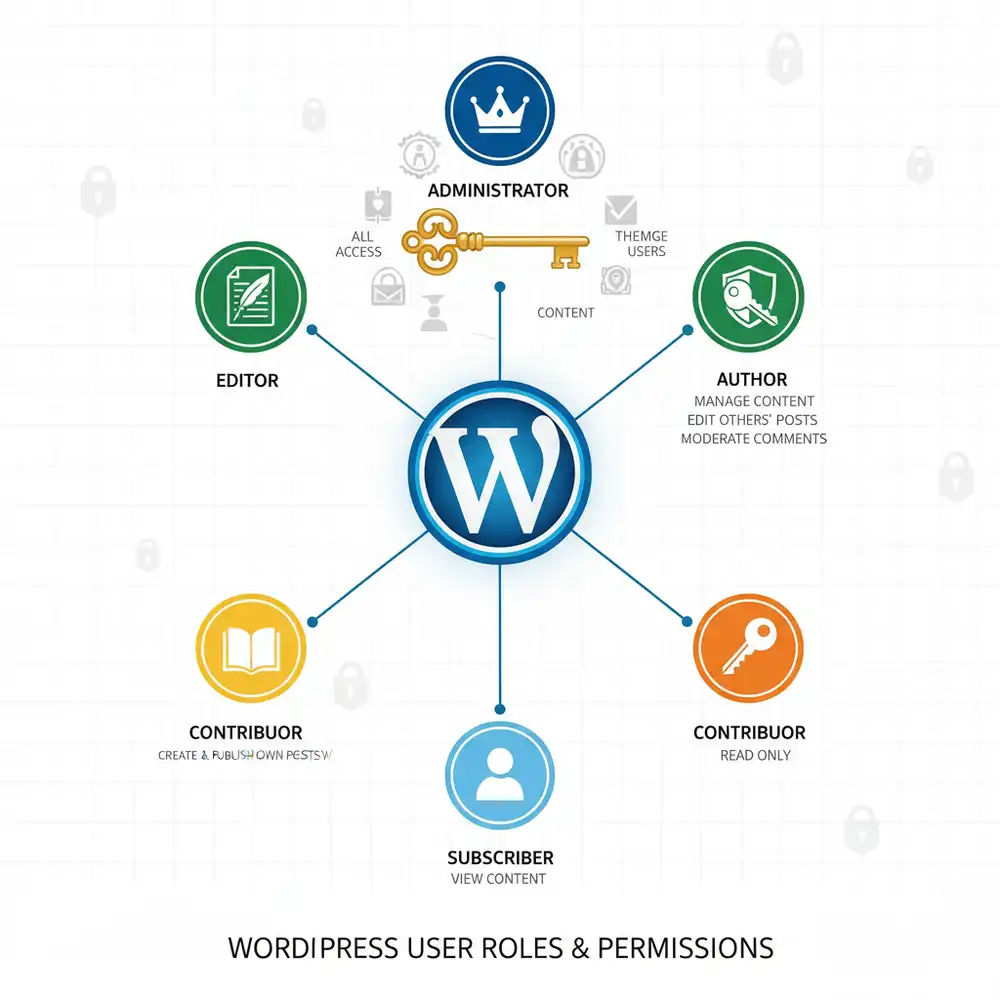
WordPress comes with five default user roles, each with a specific set of permissions (called capabilities):
1. Administrator
- Permissions: The most powerful role. Administrators have complete control over the entire website. They can add and remove users, install and delete themes and plugins, edit core files, and manage all content and settings. The Administrator role is like the superuser of the WordPress site.
- When to use: This role should be reserved for site owners and trusted technical administrators only. Limit the number of Administrator accounts to an absolute minimum (ideally, just one or two).
2. Editor
- Permissions: Editors have full control over the content of the website. They can publish, edit, and delete their own posts and pages, as well as the posts and pages of other users. They can also manage categories, tags, and moderate comments.
- When to use: Ideal for your head of content or managing editor who needs to oversee all content on the site but doesn’t need access to site settings, plugins, or themes.
3. Author
- Permissions: Authors can create, edit, publish, and delete their own posts. They cannot edit other users’ posts, create pages, or modify site settings.
- When to use: Perfect for your regular content creators and writers who manage their own articles.
4. Contributor
- Permissions: Contributors can create and edit their own posts, but they cannot publish them. Their posts must be reviewed and published by an Editor or Administrator. They also cannot upload media files.
- When to use: Excellent for guest posters or new writers. It allows them to submit content without giving them the ability to publish it directly to the site.
5. Subscriber
- Permissions: The most limited role. Subscribers can log in to the site, update their own profiles, and read content. They cannot create or edit any content.
- When to use: This role is useful for sites that require users to log in to read content or leave comments (if that setting is enabled). It’s the default role for new user registrations.
Best Practices for Managing User Roles and Permissions
Properly managing user roles is a critical part of your overall security strategy.
1. Assign Roles Based on the Principle of Least Privilege
Always assign the role with the minimum permissions a user needs to do their job. If a user only needs to write and submit drafts, make them a Contributor, not an Author or Editor.
2. Limit the Number of Administrators
Have as few Administrator accounts as possible. Each additional Administrator account is another potential high-value target for hackers. Regularly review your user list and downgrade any users who no longer need full administrative access.
3. Regularly Audit User Accounts
Periodically review all user accounts on your WordPress site. Check for:
- Inactive users: Remove any user accounts that are no longer active. Old, abandoned accounts are a security risk.
- Incorrect roles: Ensure that all users have the appropriate role for their current responsibilities.
- Suspicious accounts: Look for any user accounts that you don’t recognize.
4. Enforce Strong Password Policies
Encourage or require all users to use strong, unique passwords. You can use security plugins to enforce password strength and expiration policies. This is a key part of securing user accounts, as we discussed in our guide on WordPress Security Best Practices.
5. Implement Two-Factor Authentication (2FA)
Strongly encourage or require all users, especially Administrators and Editors, to enable Two-Factor Authentication (2FA). This adds a critical layer of security to user accounts, making them much harder to compromise. For more details, refer to our WordPress Two-Factor Authentication (2FA) Setup Guide.
6. Customize User Roles (If Necessary)
If the default WordPress roles don’t fit your exact needs, you can customize them or create new ones using a plugin.
- Plugin recommendation: The User Role Editor plugin is a popular and powerful tool that allows you to change, add, or delete user capabilities for any role. For example, you could allow Contributors to upload media files or create a new role for a proofreader who can only edit posts but not publish them.
Conclusion
Effectively managing WordPress user roles and permissions is a simple yet powerful way to enhance your website’s security. By adhering to the principle of least privilege, limiting high-level access, and regularly auditing your user accounts, you can significantly reduce your site’s attack surface and protect it from both internal mistakes and external threats.
Make user role management a standard part of your security routine. A well-managed user base is a key component of a secure and professional WordPress website. For more in-depth information on WordPress user roles, you can consult the official WordPress Codex on Roles and Capabilities.
Frequently Asked Questions (FAQs)
Q1: What is the most powerful user role in WordPress?
The most powerful user role in WordPress is the Administrator. An Administrator has complete control over the entire website, including the ability to add and remove users, install themes and plugins, and manage all content and settings. This role should be assigned with extreme caution.
Q2: What is the difference between an Author and a Contributor?
The main difference is that an Author can publish and manage their own posts, while a Contributor can write and edit their own posts but cannot publish them. A Contributor’s posts must be reviewed and published by an Editor or Administrator, making this role ideal for guest writers or new team members.
Q3: Why should I limit the number of Administrator accounts?
You should limit the number of Administrator accounts to minimize your website’s attack surface. Each Administrator account is a high-value target for hackers. If compromised, it grants an attacker full control over your site. By following the principle of least privilege, you reduce the potential damage of a security breach.
Q4: How can I create custom user roles in WordPress?
You can create custom user roles in WordPress using a plugin like User Role Editor. This allows you to define new roles with specific sets of permissions (capabilities) tailored to your team’s workflow, giving you more granular control over user access than the default WordPress roles offer.
Q5: Is it safe to use the Editor role for regular writers?
No, it is not recommended to use the Editor role for regular writers. The Editor role has powerful permissions, including the ability to edit and delete anyone’s content. This level of access should be reserved for trusted senior staff who manage the overall content strategy. Regular writers should be assigned the Author or Contributor role.